> For the complete documentation index, see [llms.txt](https://docs.kaliumtheme.com/llms.txt). Markdown versions of documentation pages are available by appending `.md` to page URLs; this page is available as [Markdown](https://docs.kaliumtheme.com/general/header/transparent-header.md).
# Transparent Header
Letting the header float over the page instead of sitting above it.
This option enables the header to blend seamlessly with the background of the page, making it appear as though it is floating over the content. This effect is achieved by setting the header's background to transparent, allowing the underlying page content or background image to be visible through the header.
To enable the *Transparent Header*, navigate to **Appearance -> Customize -> Header** and activate the **Transparent Header** option. Click on the option to access and adjust its settings.
***
#### Spacing
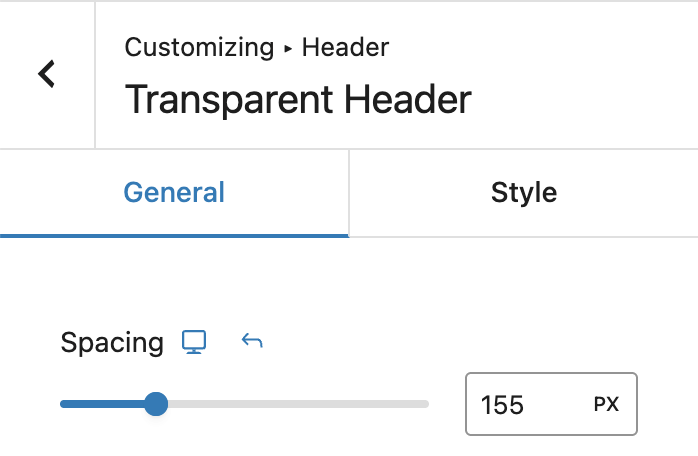
Control the top spacing of the page content to prevent it from being hidden behind the transparent header.
Content Spacing Placeholder
This responsive option allows you to set different spacing values for desktop, tablet, and mobile devices. The spacing creates padding at the top of the page wrapper to accommodate the header height.
***
#### Custom Logo
Use a different logo specifically for the transparent header state.
Custom Logo
**Custom Logo**\
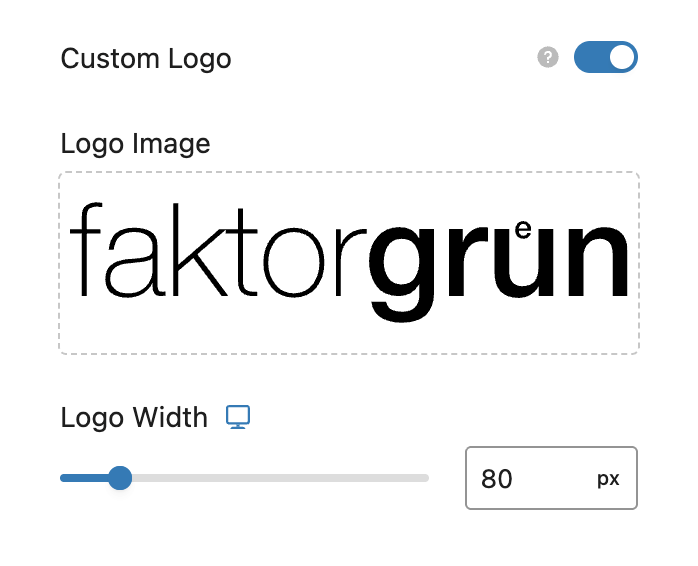
Enable this option to display a different logo image when the transparent header is active. This is useful when you need a logo with better contrast against varying background colors or images.
**Logo Image**\
When Custom Logo is enabled, select or upload your preferred transparent header logo image.
**Logo Width**\
Set a custom width for the transparent header logo. This responsive option allows you to define different widths for desktop, tablet, and mobile devices.
***
#### Display Conditions
Control where and when the transparent header appears on your website.
Display Conditions
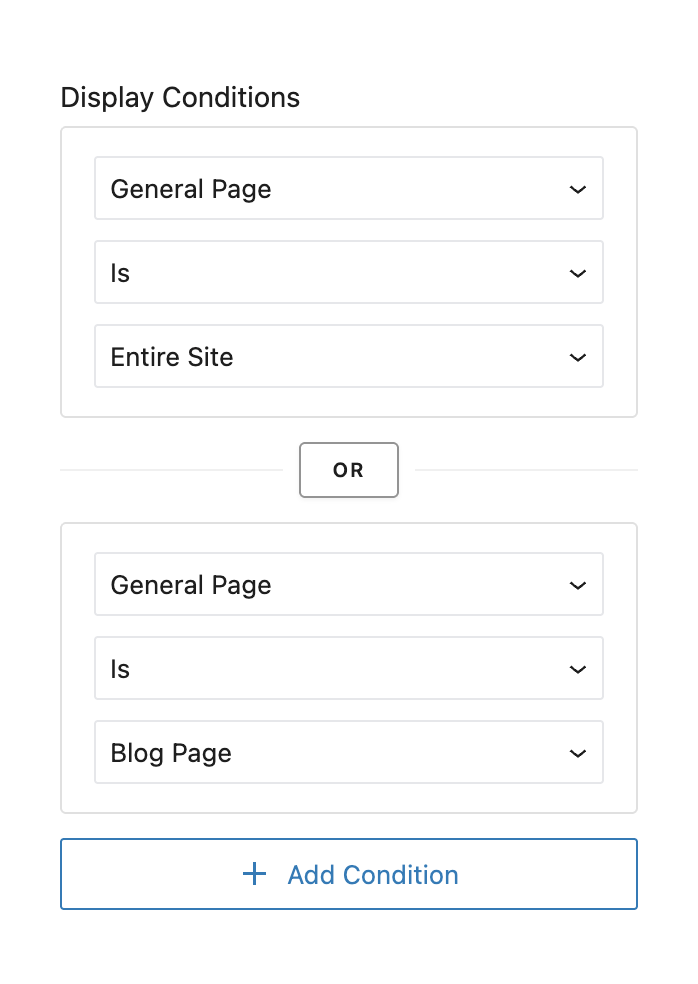
Set up rules to determine on which pages the transparent header will be displayed. You can create multiple conditions using various criteria such as page types, specific pages, post categories, and more.
{% hint style="info" %}
**Important:** Display conditions are what switch the transparent header on across the site. With none set, it applies only where a single post or page asks for it itself, through **Parameters and Options -> Page Options -> Header Options -> Header Position** set to *Over the Content (Absolute)*.
That per-page setting also wins the other way: *Content Below (Static)* keeps the header opaque on that page whatever the conditions here say.
{% endhint %}
***
#### Styling
You can apply custom styling for the transparent header to ensure optimal visibility and aesthetics against your page backgrounds. Here are the options and their usage:
Style Options
**Menu**
**Links**\
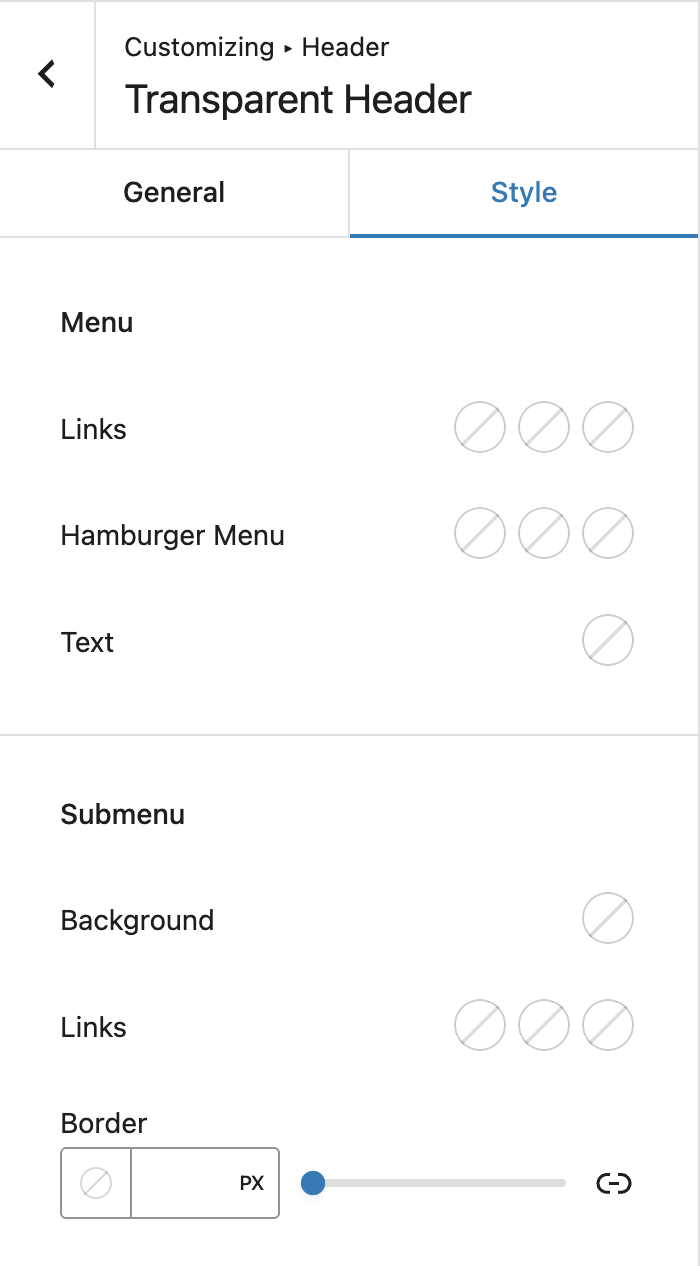
Set the colors for the normal, hover, and active states of the main menu items.
**Hamburger Menu**\
Configure the colors for the normal, hover, and active states of the hamburger menu icon (mobile menu trigger).
**Text**\
Set the color for other text elements within the transparent header.
**Pill Navigation**
If pill navigation is enabled in your header settings, you can customize the appearance of pills for the transparent header state.
**Background**\
Apply custom pill background colors for normal, hover, and active states.
**Color**\
Set custom pill text colors for normal, hover, and active states.
**Submenu**
**Background**\
Set the background color for dropdown submenus when the transparent header is active.
**Pill Background**\
If pill navigation is enabled, configure the pill background colors for submenu items in normal, hover, and active states.
**Links**\
Set the colors for submenu links in normal, hover, and active states.
**Border**\
Configure the border style, width, and color for dropdown submenus.